Detect invoice data with custom fields (AI)
Extracts structured invoice data (seller, buyer, line items, totals, payment details) from an invoice using AI, plus up to 10 fields you define yourself. It reads PDF files, scans and photos (JPEG, PNG), Word (DOCX) and Excel (XLSX) files and text files such as TXT or CSV. Each own field comes with certainty, page and an optional check (IBAN, VAT ID, tax number, date, amount or your own format). Values that need a human look are marked with Needs Review.
 Detect invoice data with custom fields (AI)
Show advanced options
Step by step: get the project number from an invoice
This action reads all standard invoice fields and, in addition, the fields you define under Additional Field. The example below shows how to get a project number from our sample invoice. The same steps work for a cost center, an order number or any other value on your documents.
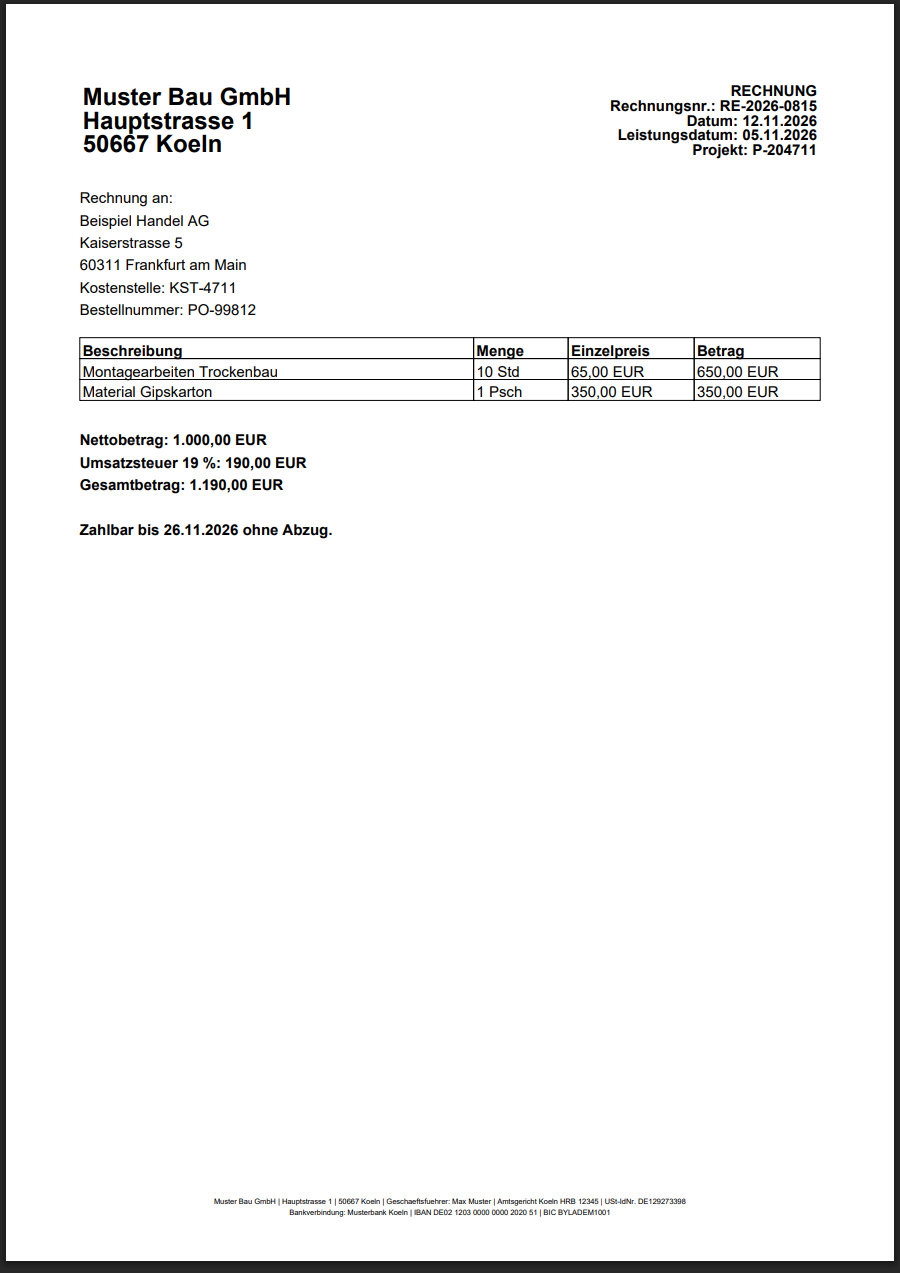
Download the sample invoice (PDF) and try it in your own flow. It has the project number P-204711 at the top right, the cost center KST-4711 in the invoice address and the bank details in small print in the footer.
Step 1: Start the flow with a file
Create an instant cloud flow with the trigger Manually trigger a flow. Choose Add an input and then File; here the input is called Invoice.
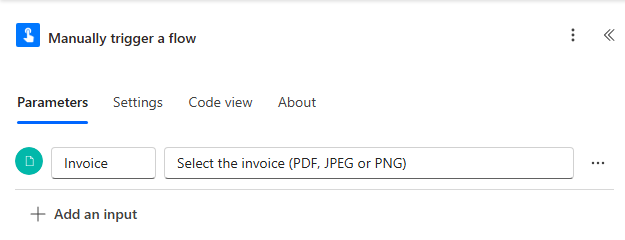
Any trigger that gives you the file content works as well, for example When a new email arrives (attachment) or When a file is created in SharePoint or OneDrive.
Step 2: Add the action
Below the trigger choose + and Add an action, search for invoice data with custom fields and select Detect invoice data with custom fields (AI) from the connector BILL Converter by Power2Apps.
Step 3: Choose the file and define your fields
Put the file content of the trigger into Invoice File. Open Advanced parameters and choose Show all. Under Additional Field you describe each value you want, one item per field.
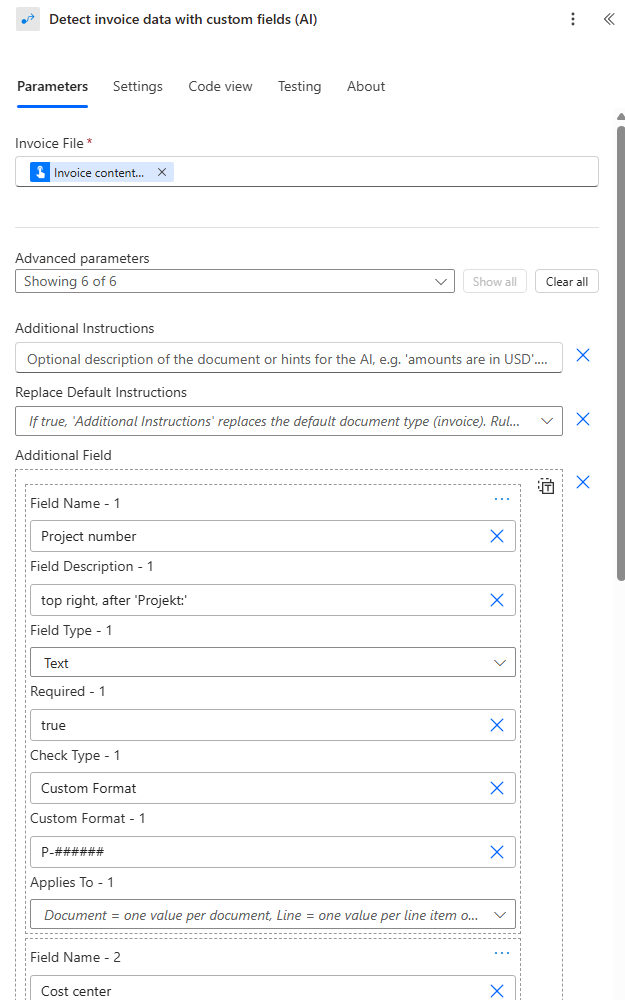
For the project number we use:
- Field Name:
Project number - Field Description:
top right, after 'Projekt:' - Field Type:
Text - Required:
true - Check Type:
Custom Format - Custom Format:
P-######(P, a hyphen and six digits)
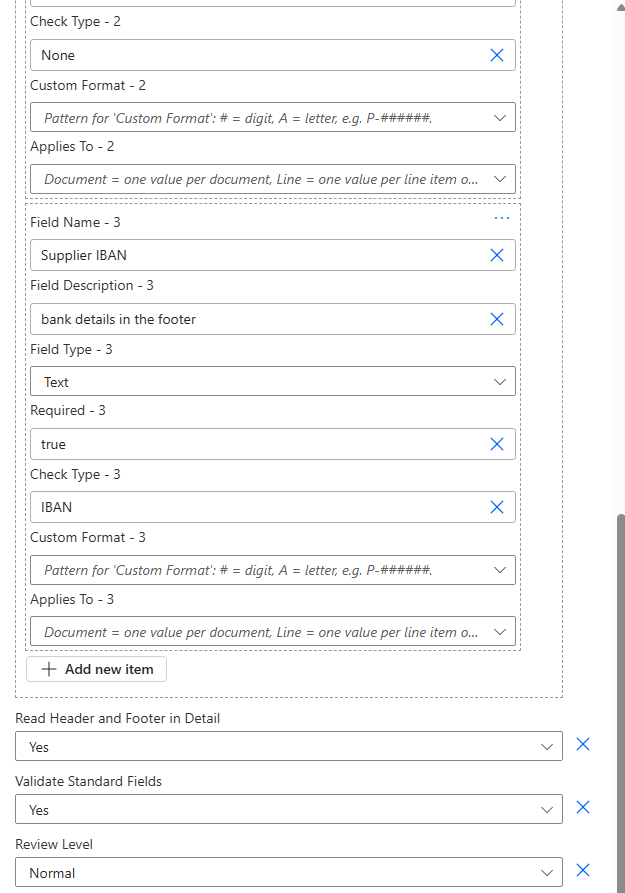
With Add new item we add two more fields: Cost center (in the invoice address, after 'Kostenstelle:', no check) and Supplier IBAN (bank details in the footer, required, check IBAN). Below the fields, three settings control how the document is read and checked.
Step 4: Run the flow with the sample invoice
Save the flow, choose Test, then Manually. Select the sample invoice with Import and start the flow with Run flow.
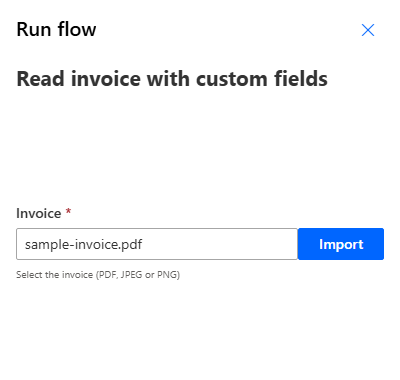
Step 5: Check the result
Open the run and the action. In the outputs you find the project number three times:
- Additional Field 1 Value:
P-204711(it is the first field in Additional Field) - Additional Field Values:
"Project number": "P-204711"(the same value by field name) - Additional Field Details: certainty
95, page1and the text it was read from,Projekt: P-204711
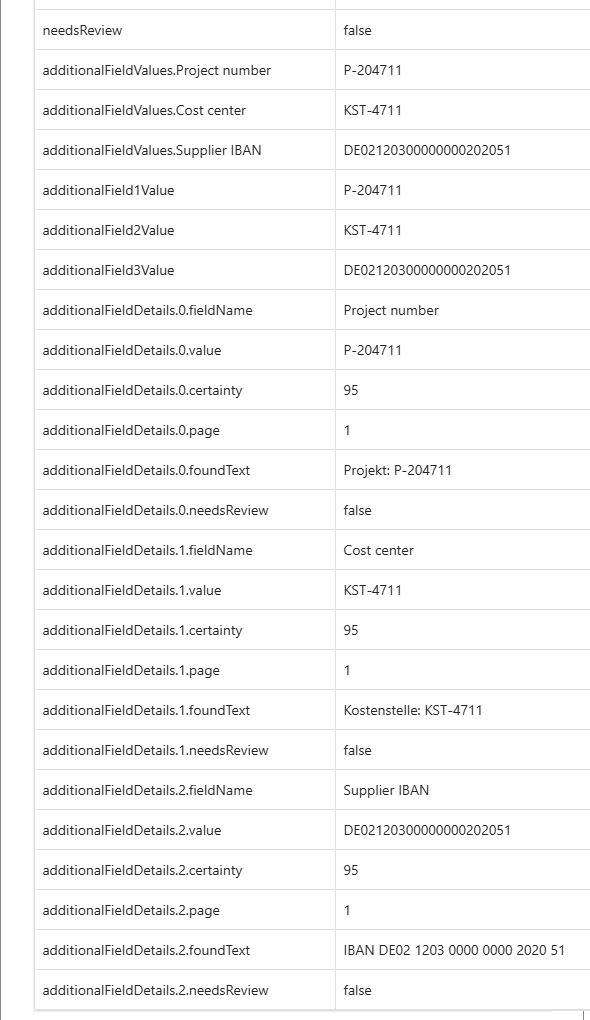
Needs Review is false: all three values were found, both checks passed and the certainty is above the review level.
Step 6: Use the value in the next step
In the next step, for example Create item in SharePoint, a condition or (as here) Compose, open the dynamic content and search for Additional Field. Additional Field 1 Value is your project number, Additional Field 2 Value the cost center and so on, in the order of your fields.
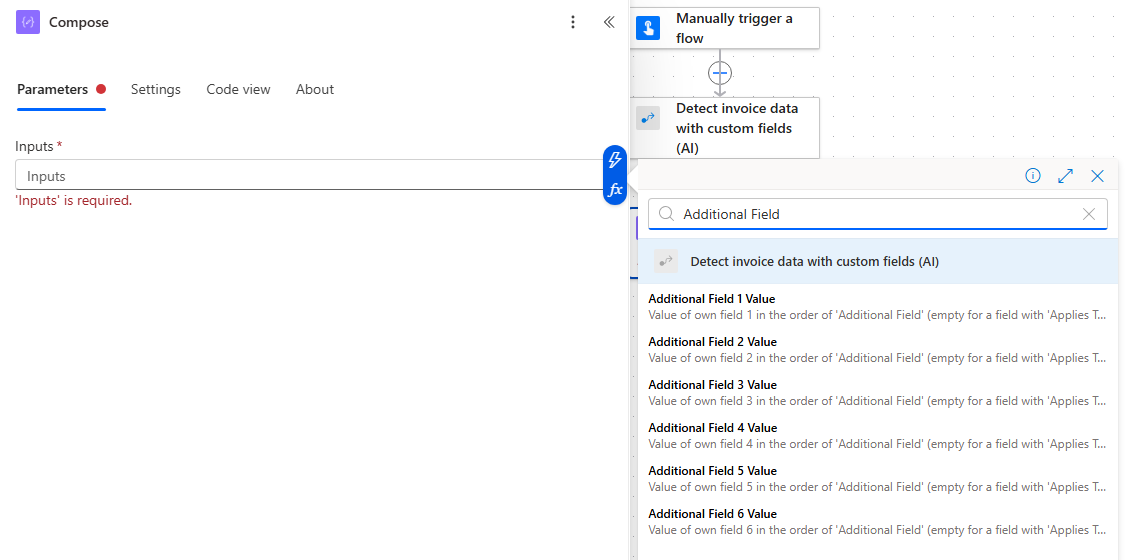
The settings in short
- Invoice File: the invoice as PDF, JPEG or PNG (scan or photo), as XML e-invoice, or as DOCX, XLSX or text file (for example TXT or CSV in UTF-8). Of a PDF, the AI reads as many pages as your plan allows, at most 50 (free plan: 5). If the PDF has more pages, Notes starts with
PagesSkippedand names how many pages were read. A Word, Excel or text file is read as text, up to 60000 characters (longer text is shortened with the noteContentShortened); the page of every value is then 1. Old Word or Excel files (.doc, .xls) and password-protected Office files cannot be read: save them as DOCX or XLSX first. Example: the file content of the trigger or of Get file content. - Additional Instructions: describe your document or give the AI a hint (up to 2000 characters; longer hints are shortened with the note
InputShortened). Example:Amounts are in CHF. - Replace Default Instructions: set to Yes if your document is not an invoice; then Additional Instructions describes the document instead of the default "invoice". Without Additional Instructions the setting has no effect, and Notes starts with
ReplaceIgnored. Example: Yes together withA delivery note of a building supplier. - Additional Field: up to 10 own fields, for the document and per invoice line together; the settings of each field are listed below. If you send more, the first 10 are read and Notes says
FieldsLimited. Example: project number, cost center and supplier IBAN as in the steps above. - Read Header and Footer in Detail: Yes also sends the top and bottom of page 1 zoomed in, so small print is read better (PDF, JPEG and PNG only). Example: bank details and VAT ID in the footer, like on the sample invoice.
- Validate Standard Fields: Yes checks the IBAN, the VAT IDs and the totals of the standard fields; a problem sets Needs Review. Example: net
1000.00+ VAT190.00must give gross1190.00. - Review Level: how often values are marked for review: Rarely, Normal or Often. An unknown value counts as Normal (note
ReviewLevelDefaulted). Example: Often if the values go straight into your accounting. - Data Source Mode: where the values come from. Auto (the default) reads an e-invoice from its XML (a PDF with embedded ZUGFeRD or Factur-X XML, or an XRechnung as CII or UBL XML file) and asks the AI only for what the XML does not have: your own fields, or the invoice lines if the XML has none. A document without valid XML is read by the AI. Always AI reads every document with the AI. XML Only never uses the AI: without valid XML the fields stay empty and Check Status is Error with the code
NoValidXml. An unknown value counts as Auto (noteDataSourceModeDefaulted). Data Source tells where the values came from:AI,XMLorXML and AI. Example: XML Only if only e-invoices may be processed and no AI may be used.
Each Additional Field has these settings:
- Field Name: the name of the value; it is also the key in Additional Field Values. A field without a name, or with a name that an earlier field already uses, is skipped with the note
FieldSkipped. Names longer than 100 characters are shortened for the AI (noteFieldNameShortened); the response keeps the full name. Example:Project number - Field Description: where the value is on the document, up to 1000 characters (longer descriptions are shortened with the note
FieldDescriptionShortened). Example:top right, after 'Projekt:' - Field Type: Text, Number, Date or Amount; an unknown value counts as Text (note
FieldTypeDefaulted). Example:Datefor an order date; it comes back asyyyy-MM-dd. - Required: if true, a missing value is listed in Missing Required Fields and marked for review. Example:
truefor the project number. - Check Type: an optional check of the value (see Checks below). An unknown check type, or Custom Format without a pattern, means no check (note
CheckTypeIgnored). Example:IBANfor the supplier IBAN. - Custom Format: the pattern for the check Custom Format, up to 50 characters. Example:
P-######matchesP-204711. - Applies To: Document reads one value per document (the default), Line one value per invoice line or table row (see Values per invoice line below). An unknown value counts as Document (note
AppliesToDefaulted). Example:Linefor the delivery note number printed below each item.
Notes: what the action adjusted
The action does not reject your input when something does not fit: it uses the default, skips the field or shortens the text, and says so in Notes. Each such note starts with a fixed code, so a flow can check for it, for example with contains FieldSkipped:
ContentShortened,InputShortened,FieldDescriptionShortened,FieldNameShortened: a text was too long and was shortened.PagesSkipped: only the first pages of a long PDF were read.FieldsLimited: more than 10 own fields; the first 10 were read.FieldSkipped: an own field had no name or a name used twice.FieldTypeDefaulted,CheckTypeIgnored,ReviewLevelDefaulted,AppliesToDefaulted,DataSourceModeDefaulted,ReplaceIgnored: a setting had an unknown value or no effect; the default was used.LinesTruncated: the answer of the AI reached its length limit; not all invoice lines may be included.- With XML Only and no valid e-invoice, Notes says
No valid embedded e-invoice found; with 'XML Only' nothing is read by the AI.and Check Hints has the codeNoValidXml.
The action only fails if there is no file or the file cannot be read, for example an old .doc or .xls file, a damaged file or a file without any text.
Values per invoice line
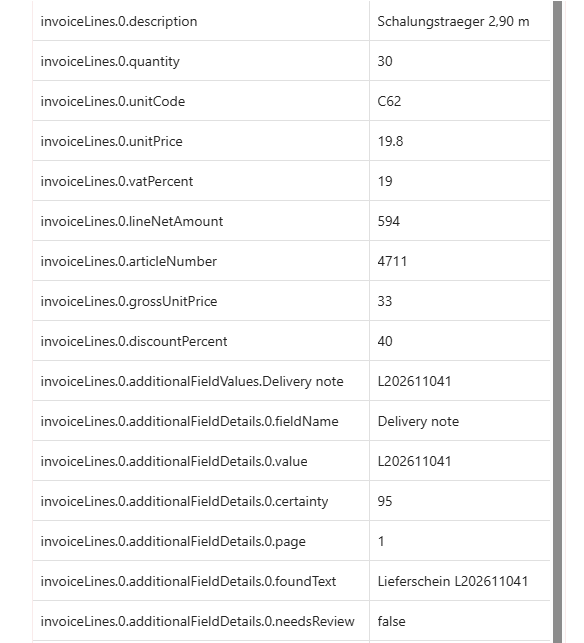
A field with Applies To Line is read for every invoice line. Its values are in Invoice Items: each line has its own Additional Field Values (by field name) and Additional Field Details (value, certainty, page, found text and whether it needs review). At the top level, Additional Field Values and Additional Field Details only contain the fields with Document; Additional Field N Value stays empty for a line field, so the numbering still follows your list.
Field Type, Check Type and Review Level work for each line as for the document. A note about a line starts with its number, for example Line 2: The required field 'Delivery note' was not found on the document., and a missing required value is listed in Missing Required Fields as Line 2: Delivery note. If no invoice lines are found, Notes says Line fields were requested, but no line items were found.
Example: the delivery note number of each line
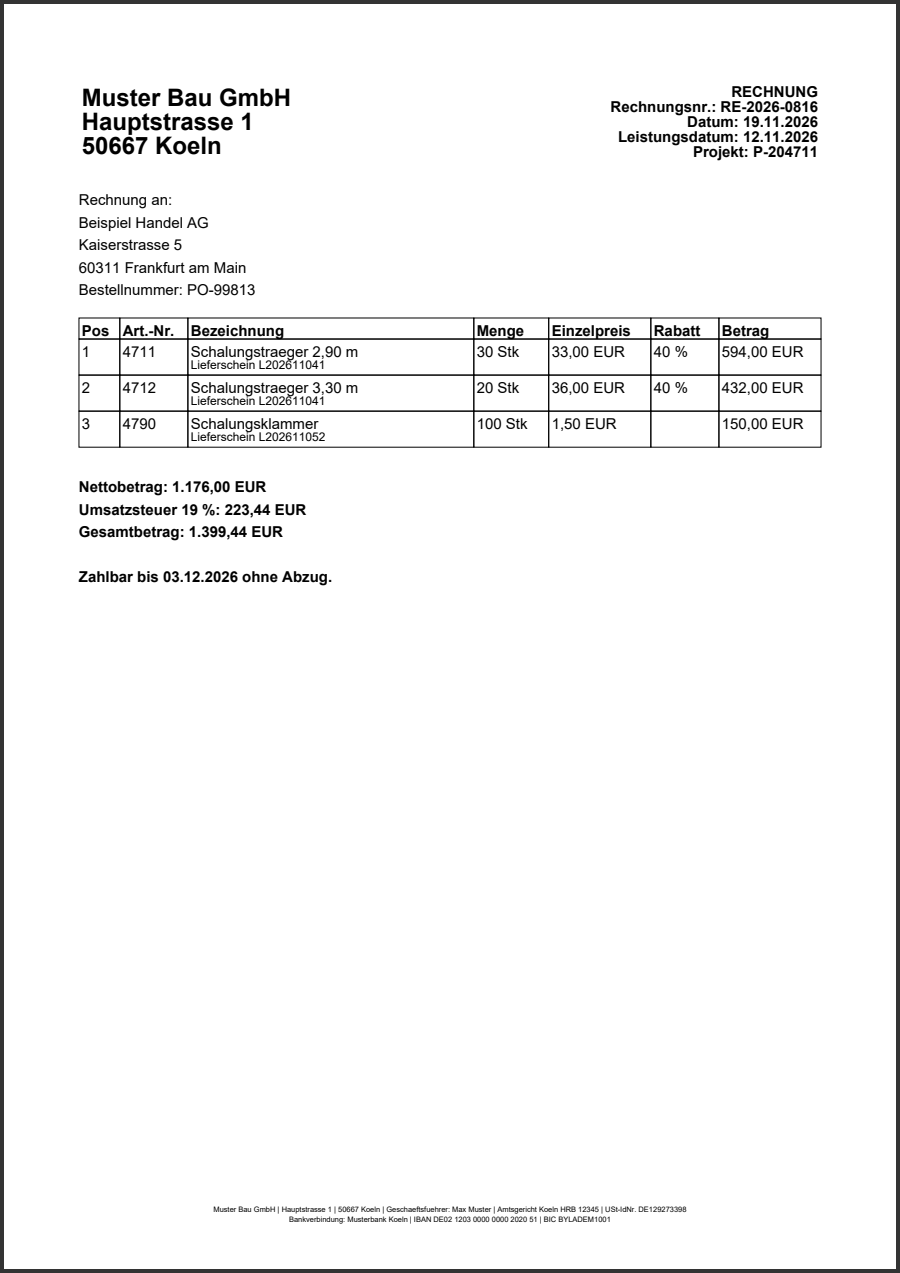
Download the sample invoice with lines (PDF). It has the project number P-204711 at the top right and, below each item, the delivery note the item came with: items 4711 and 4712 with L202611041, item 4790 with L202611052.
The project number is the same for the whole invoice, so it keeps Applies To Document. For the delivery note we add a second field with Applies To Line:
- Field Name:
Delivery note - Field Description:
below the item: only the number after the word 'Lieferschein', without that word - Field Type:
Text - Required:
true - Applies To:
Line
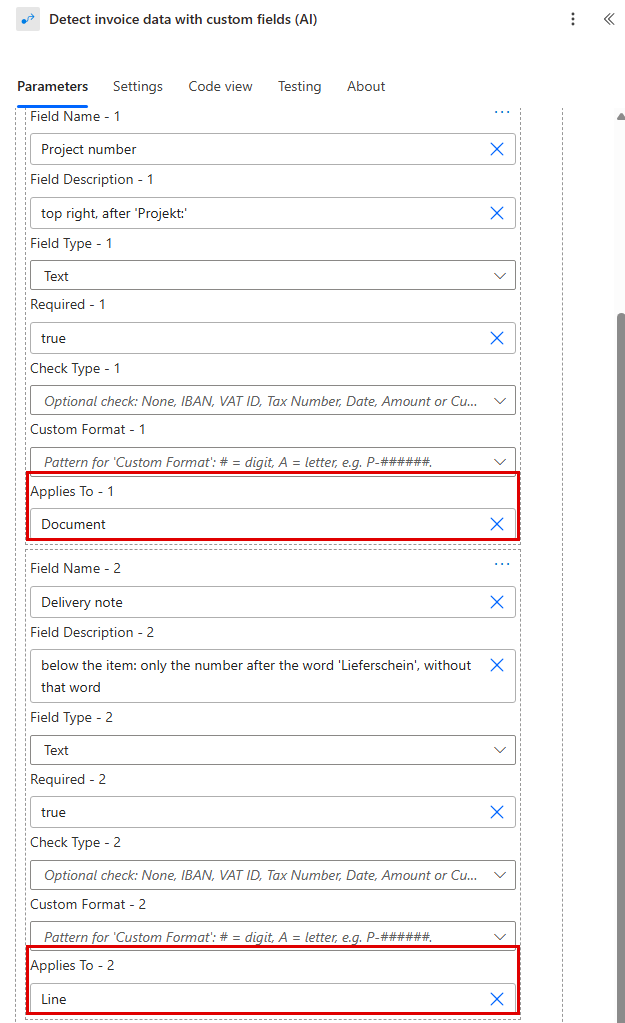
Say exactly which part of the text you want. Without only the number ... without that word, the AI may return Lieferschein L202611041 instead of L202611041.
After the run, the document field is at the top level, as in Step 5:
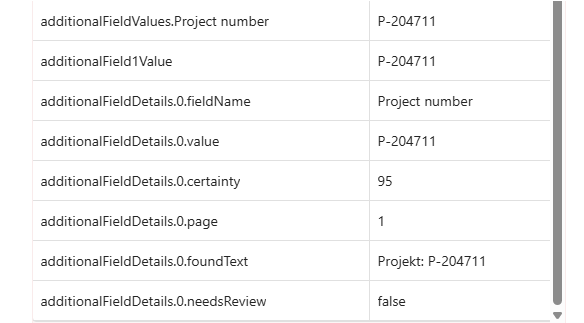
Additional Field 2 Value stays empty, because Delivery note is a line field. Its values are in Invoice Items, one per line. The first line has the delivery note L202611041, read from the text Lieferschein L202611041:
Use the line values in your flow
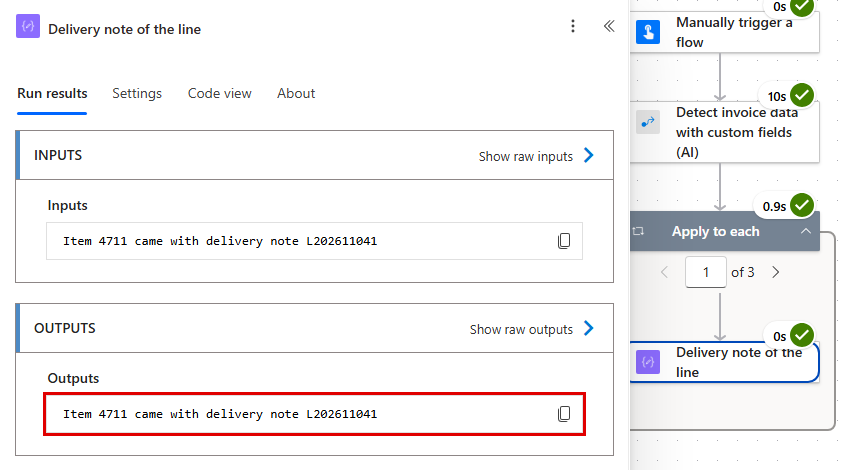
Invoice Items is a list. Add the control Apply to each, select Invoice Items of the action, and use the values of the current line inside it, for example in a Compose with this expression:
items('Apply_to_each')?['additionalFieldValues']?['Delivery note']The text in the last brackets is your Field Name, written exactly the same. If your loop has another name, use that name with _ instead of spaces. In our test flow, the Compose writes Item @{items('Apply_to_each')?['articleNumber']} came with delivery note @{items('Apply_to_each')?['additionalFieldValues']?['Delivery note']}. For the first of the three lines it returns Item 4711 came with delivery note L202611041:
Discounts and article numbers in the invoice lines
Each invoice line also returns Article Number (the item number of the seller), Gross Unit Price (the unit price before the line discount), Discount Percent and Discount Amount (the discount of the whole line), each only if it is printed. Unit Price is the net unit price after the discount.
If the net unit price is not printed, or quantity × unit price differs from Line Net Amount by more than 0.02, the action calculates it as line net amount / quantity, rounded to 4 decimals, and Notes says for example Line 1: unit price derived from line net amount.
Many invoices print only the price before the discount, for example Einzelpreis 33,00 | Rabatt 40 % | Betrag 594,00. If this printed price, the quantity and Discount Percent give the line net amount, the printed price is returned as Gross Unit Price, and Notes says for example Line 1: gross unit price taken from the printed unit price. Example: 30 pieces at 33.00 with 40 % discount and a line net amount of 594.00 give Unit Price 19.8, Gross Unit Price 33 and Discount Percent 40. Discount Amount is only filled if the invoice prints it, here it stays empty. This is the first line of the sample invoice with lines above.
If no country is printed for the seller or the buyer, but the postcode has 5 digits and the VAT ID of the same party starts with DE, the country is set to DE, and Notes says Seller country DE derived from VAT ID and postcode. (or Buyer country ...).
The full response
Response of the run above (shortened, standard fields partly left out):
{
  "invoiceNumber": "RE-2026-0815",
  "invoiceDate": "2026-11-12",
  "sellerName": "Muster Bau GmbH",
  "sellerVatId": "DE129273398",
  "buyerName": "Beispiel Handel AG",
  "buyerOrderNumber": "PO-99812",
  "iban": "DE02 1203 0000 0000 2020 51",
  "totalNetAmount": 1000.0,
  "totalVatAmount": 190.0,
  "totalGrossAmount": 1190.0,
  "isReadyForEInvoice": true,
  "needsReview": false,
  "additionalFieldValues": {
    "Project number": "P-204711",
    "Cost center": "KST-4711",
    "Supplier IBAN": "DE02120300000000202051"
  },
  "additionalField1Value": "P-204711",
  "additionalField2Value": "KST-4711",
  "additionalField3Value": "DE02120300000000202051",
  "additionalFieldDetails": [
    {
      "fieldName": "Project number",
      "value": "P-204711",
      "certainty": 95,
      "page": 1,
      "foundText": "Projekt: P-204711",
      "needsReview": false
    },
    {
      "fieldName": "Cost center",
      "value": "KST-4711",
      "certainty": 95,
      "page": 1,
      "foundText": "Kostenstelle: KST-4711",
      "needsReview": false
    },
    {
      "fieldName": "Supplier IBAN",
      "value": "DE02120300000000202051",
      "certainty": 95,
      "page": 1,
      "foundText": "IBAN DE02 1203 0000 0000 2020 51",
      "needsReview": false
    }
  ]
}
The standard field IBAN is returned as printed, the own field with the check IBAN without spaces. If a required field is missing, Needs Review is true, the field is listed in Missing Required Fields and Notes says for example The required field 'Project number' was not found on the document.
Checks
- None: no check, the value is returned as read.
- IBAN: country length and checksum. The value is returned without spaces.
- VAT ID: country format and check digits of the EU countries. Numbers from outside the EU (for example CHE… or GB…) are accepted without a check.
- Tax Number: 10 to 13 digits; only spaces,
/,-and.are allowed. The value is returned as printed. - Date: common date formats are recognized; the value is returned as
yyyy-MM-dd. 01/02/2026 is read as 1 February (day before month). - Amount: currency signs and thousands separators are removed; the value is returned with a decimal point, for example
1234.50. - Custom Format:
#= digit,A= letter, every other character must match exactly. Example:P-######matchesP-123456.
When is a value marked for review?
A field gets Needs Review = true if it is required and missing, if its check fails, or if the AI certainty is below the Review Level: Rarely = below 60, Normal = below 80, Often = below 90. With Validate Standard Fields the IBAN, the VAT IDs, the totals (net + VAT = gross) and the sum of the invoice lines are checked as well.
Tips
- Describe in Field Description where the value is on the document. This helps the AI more than a long field name.
- Switch on Read Header and Footer in Detail if values are in small print at the top or bottom of page 1, for example bank details or the VAT ID in the footer.
- Up to 10 own fields per call; give every field its own name (a name used twice is skipped).
- Use Applies To Line for values that differ from item to item, for example a delivery note number, a cost center or a project per line.
- A Word or Excel invoice does not need to be converted to PDF first: the action reads DOCX and XLSX directly as text.
- Each call counts toward your monthly limit for AI actions.
Parameters
| Property | Name | Type | Description |
|---|---|---|---|
invoiceFile | Invoice File required | file (base64) | The invoice as PDF, JPEG or PNG (scan or photo), as XML e-invoice, or as DOCX, XLSX or text file (e.g. TXT, CSV). |
additionalInstructions | Additional Instructions advanced | string | Optional description of the document or hints for the AI, e.g. 'amounts are in USD'. Max 2000 characters. |
replaceDefaultInstructions | Replace Default Instructions advanced | boolean | If true, 'Additional Instructions' replaces the default document type (invoice). Rules and output format stay the same. default: false |
additionalFields | Additional Field advanced | array of DtoAdditionalField | Up to 10 own fields to extract in addition to the standard invoice fields. |
readHeaderAndFooterInDetail | Read Header and Footer in Detail advanced | boolean | If true, the top and bottom of page 1 are also sent zoomed in, so small print like bank details is read better. default: true |
validateStandardFields | Validate Standard Fields advanced | boolean | If true, IBAN, VAT IDs and totals are checked; problems set 'Needs Review'. default: true |
reviewLevel | Review Level advanced | string (dropdown) | How often values are marked for review: Rarely, Normal or Often. default: "Normal"; dynamic dropdown |
dataSourceMode | Data Source Mode advanced | string (dropdown) | Auto: embedded e-invoice first, AI for the rest. Always AI. XML Only: no AI. default: "Auto"; dynamic dropdown |
Returns
| Property | Name | Type | Description |
|---|---|---|---|
invoiceNumber | Invoice Number | string | Recognized invoice number |
invoiceDate | Invoice Date | string | Recognized invoice date (format: yyyy-MM-dd) |
currencyCode | Currency | string | Recognized currency code (e.g., EUR, USD) |
sellerName | Seller Name | string | Recognized seller company or person name |
sellerStreet | Seller Street | string | Recognized seller street address |
sellerPostcode | Seller Postcode | string | Recognized seller postal code |
sellerCity | Seller City | string | Recognized seller city or locality |
sellerCountry | Seller Country | string | Recognized seller country (ISO code, e.g., DE) |
sellerVatId | Seller VAT ID | string | Recognized seller VAT ID |
buyerName | Buyer Name | string | Recognized buyer company or person name |
buyerStreet | Buyer Street | string | Recognized buyer street address |
buyerPostcode | Buyer Postcode | string | Recognized buyer postal code |
buyerCity | Buyer City | string | Recognized buyer city or locality |
buyerCountry | Buyer Country | string | Recognized buyer country (ISO code, e.g., DE) |
iban | IBAN | string | Recognized bank account IBAN for payment |
paymentDueDate | Payment Due Date | string | Recognized payment due date (format: yyyy-MM-dd) |
totalNetAmount | Total Net Amount | number | Recognized total net amount (without VAT) |
totalVatAmount | Total VAT Amount | number | Recognized total VAT amount |
totalGrossAmount | Total Gross Amount | number | Recognized total gross amount (including VAT) |
invoiceLines | Invoice Items | array of DtoRecognizedInvoiceLineV2 | Recognized line items of the document (invoice lines, or positions of a delivery note, order or quote request) |
needsReview | Needs Review | boolean | True if a check failed (IBAN, VAT ID, totals, own field checks), a required own field is missing, or the AI was not sure enough |
checkStatus | Check Status | string | OK if no check found anything, Check if a value should be looked at, Error if a hard check failed (totals, IBAN, a required field or no XML) |
deliveryDate | Delivery Date advanced | string | Recognized delivery date (format: yyyy-MM-dd) |
buyerReference | Buyer Reference advanced | string | Recognized buyer reference or Leitweg-ID (BT-10) |
buyerOrderNumber | Order Number advanced | string | Recognized purchase order number of the buyer (BT-13) |
sellerEmail | Seller Email advanced | string | Recognized seller email address |
buyerVatId | Buyer VAT ID advanced | string | Recognized buyer VAT ID |
bic | BIC advanced | string | Recognized bank identifier code (BIC) |
paymentRecipient | Payment Recipient advanced | string | Recognized name of the payment recipient |
paymentTerm | Payment Term advanced | string | Recognized payment term |
isReadyForEInvoice | Ready for E-Invoice advanced | boolean | Whether the recognized data contains all fields required to create a valid e-invoice (EN 16931). If false, check 'Missing Required Fields' |
missingRequiredFields | Missing Required Fields advanced | array of string | Required e-invoice fields and required own fields that could not be recognized, for example 'Invoice Number (BT-1)' |
notes | Notes advanced | array of string | Notes about the recognition, for example skipped pages or uncertain values |
checkHints | Check Hints advanced | array of DtoCheckHint | One entry per finding with a fixed code, the sentence from Notes and the field it concerns; empty if the status is OK |
dataSource | Data Source advanced | string | Where the values come from: AI (read by the AI), XML (from the e-invoice) or XML and AI (missing fields by AI); empty if nothing was read |
additionalFieldValues | Additional Field Values advanced | object | Values of your own fields with 'Applies To' Document, by field name (line fields are in 'Invoice Items') |
additionalField1Value | Additional Field 1 Value advanced | string | Value of own field 1 in the order of 'Additional Field' (empty for a field with 'Applies To' Line) |
additionalField2Value | Additional Field 2 Value advanced | string | Value of own field 2 in the order of 'Additional Field' (empty for a field with 'Applies To' Line) |
additionalField3Value | Additional Field 3 Value advanced | string | Value of own field 3 in the order of 'Additional Field' (empty for a field with 'Applies To' Line) |
additionalField4Value | Additional Field 4 Value advanced | string | Value of own field 4 in the order of 'Additional Field' (empty for a field with 'Applies To' Line) |
additionalField5Value | Additional Field 5 Value advanced | string | Value of own field 5 in the order of 'Additional Field' (empty for a field with 'Applies To' Line) |
additionalField6Value | Additional Field 6 Value advanced | string | Value of own field 6 in the order of 'Additional Field' (empty for a field with 'Applies To' Line) |
additionalField7Value | Additional Field 7 Value advanced | string | Value of own field 7 in the order of 'Additional Field' (empty for a field with 'Applies To' Line) |
additionalField8Value | Additional Field 8 Value advanced | string | Value of own field 8 in the order of 'Additional Field' (empty for a field with 'Applies To' Line) |
additionalField9Value | Additional Field 9 Value advanced | string | Value of own field 9 in the order of 'Additional Field' (empty for a field with 'Applies To' Line) |
additionalField10Value | Additional Field 10 Value advanced | string | Value of own field 10 in the order of 'Additional Field' (empty for a field with 'Applies To' Line) |
additionalFieldDetails | Additional Field Details advanced | array of DtoAdditionalFieldDetail | Details for each own field with 'Applies To' Document: value, certainty, page, found text and whether it needs review |
Type DtoAdditionalField
| Property | Name | Type | Description |
|---|---|---|---|
fieldName | Field Name | string | Name of the field, e.g. 'Project number'. Used as key in 'Additional Field Values'. |
fieldDescription | Field Description | string | Where to find the value on the document, e.g. 'top right, after Project:'. |
fieldType | Field Type | string (dropdown) | Kind of value: Text, Number, Date or Amount. default: "Text"; dynamic dropdown |
required | Required advanced | boolean | If true, a missing value is listed in 'Missing Required Fields' and marked for review. default: false |
checkType | Check Type advanced | string (dropdown) | Optional check: None, IBAN, VAT ID, Tax Number, Date, Amount or Custom Format. default: "None"; dynamic dropdown |
customFormat | Custom Format advanced | string | Pattern for 'Custom Format': # = digit, A = letter, e.g. P-######. |
appliesTo | Applies To advanced | string (dropdown) | Document = one value per document, Line = one value per line item or table row. default: "Document"; dynamic dropdown |
Type DtoRecognizedInvoiceLineV2
| Property | Name | Type | Description |
|---|---|---|---|
description | Description | string | Recognized description of the invoiced item or service |
quantity | Quantity | number | Recognized quantity of the item |
unitCode | Unit Code | string | Recognized measurement unit (ISO code, e.g., C62 for piece) |
unitPrice | Unit Price | number | Recognized net unit price after line discount, without tax. If it is missing or does not match the line net amount, it is derived from line net amount and quantity (see Notes) |
vatPercent | VAT Percent | number | Recognized VAT rate for the item (e.g., 19 for 19%) |
lineNetAmount | Line Net Amount | number | Recognized net amount of the line |
articleNumber | Article Number | string | Recognized article number of the seller (BT-155) |
grossUnitPrice | Gross Unit Price | number | Recognized unit price before line discount, without tax (BT-148) |
discountPercent | Discount Percent | number | Recognized line discount in percent (e.g., 40 for 40%) |
discountAmount | Discount Amount | number | Recognized discount amount of the whole line, without tax (BT-136) |
additionalFieldValues | Additional Field Values advanced | object | Values of your own fields with 'Applies To' Line for this line, by field name |
additionalFieldDetails | Additional Field Details advanced | array of DtoAdditionalFieldDetail | Details for each own field with 'Applies To' Line for this line: value, certainty, page, found text and whether it needs review |
Type DtoAdditionalFieldDetail
| Property | Name | Type | Description |
|---|---|---|---|
fieldName | Field Name | string | Name of the own field |
value | Value | string | Recognized value (dates as yyyy-MM-dd, amounts with a decimal point) |
certainty | Certainty | integer (int32) | How sure the AI is, from 0 to 100 |
needsReview | Needs Review | boolean | True if the check failed, a required value is missing, or the certainty is below the review level |
page | Page advanced | integer (int32) | Page where the value was found, starting at 1 |
foundText | Found Text advanced | string | Text on the document the value was read from |
Type DtoCheckHint
| Property | Name | Type | Description |
|---|---|---|---|
code | Hint Code | string | Fixed code of the finding, for example TotalsMismatch, IbanInvalid or PagesSkipped |
text | Hint Text | string | The finding as an English sentence (the same as in Notes, except for LowCertainty) |
field | Hint Field | string | The field the finding concerns, for example IBAN or Line 2: Cost Center; empty if it concerns the whole document |
Example request
{
  "invoiceFile": "<base64-encoded file content>"
}
Example generated from the connector definition.